One of the best parts of your templates already being in Google Drive is the ease of sharing these files to your clients.
1. Create your sample invoice template
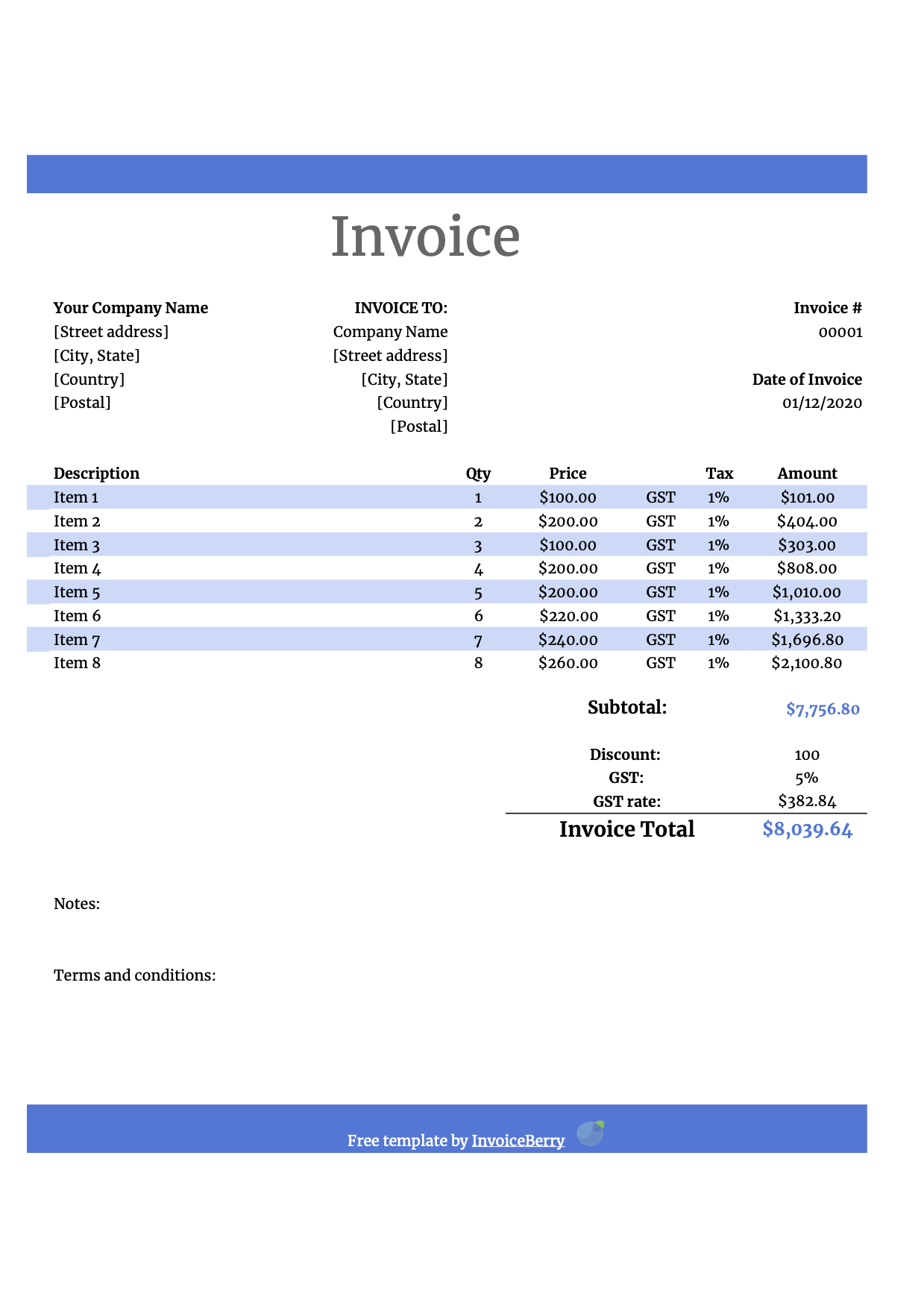
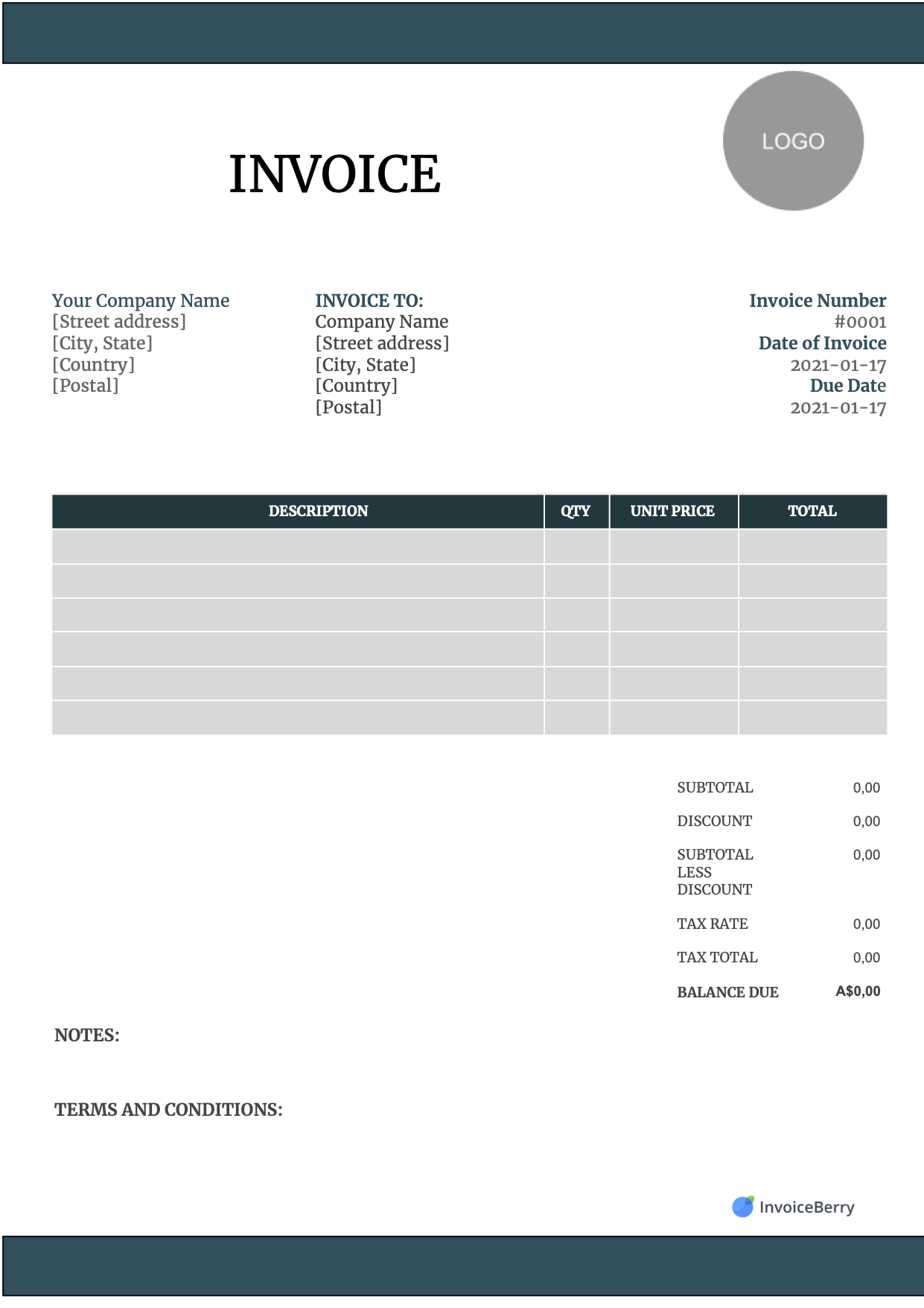
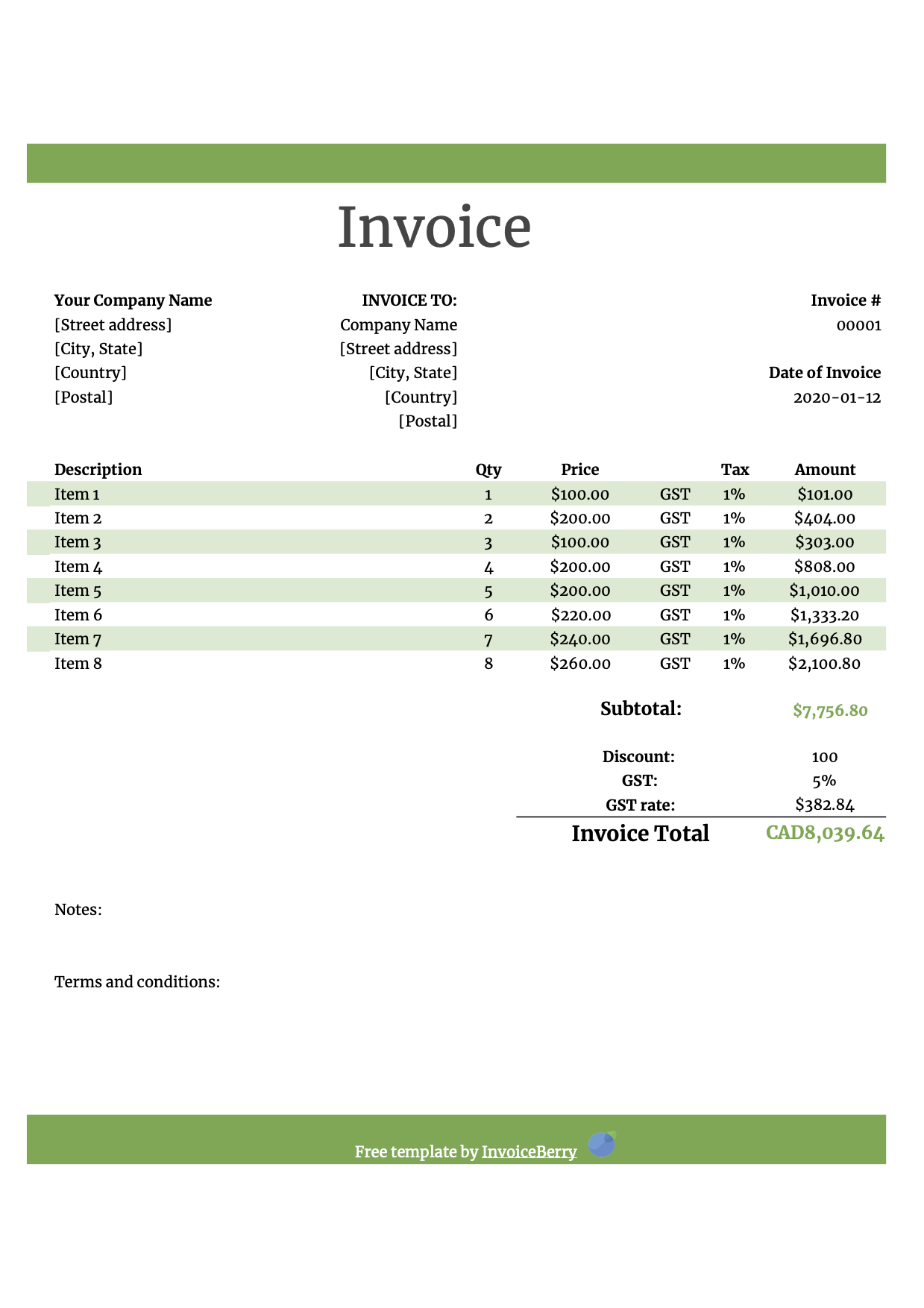
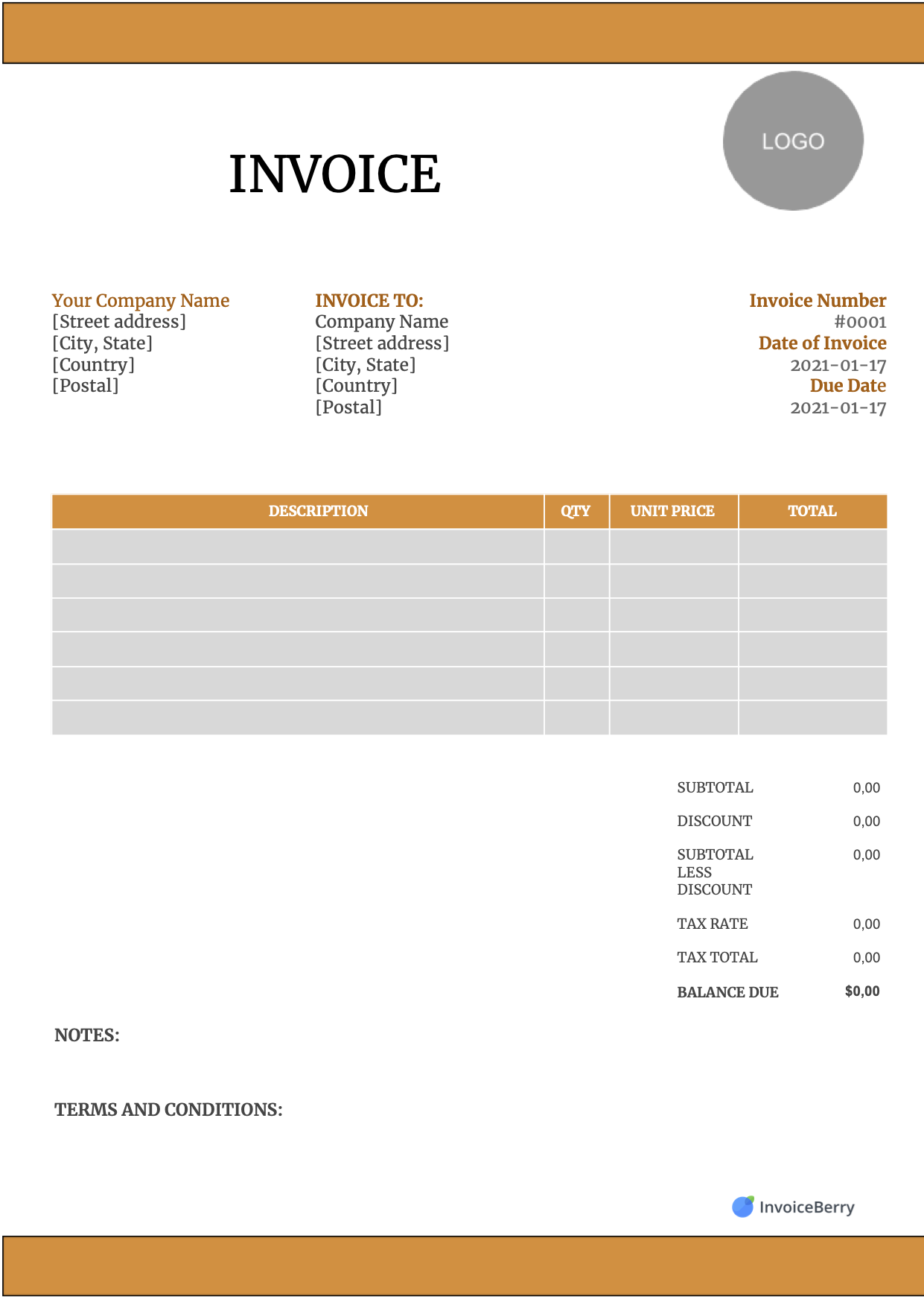
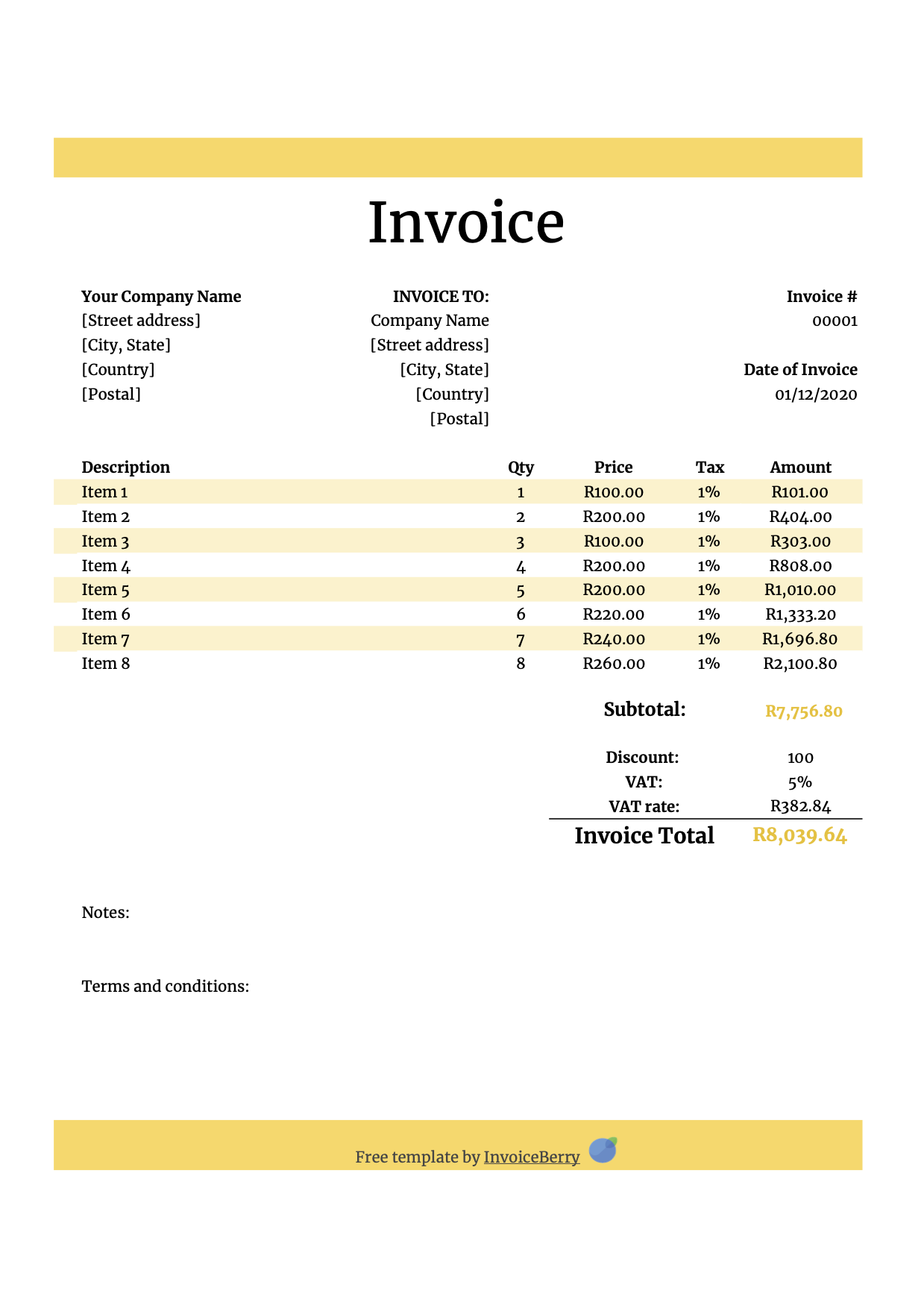
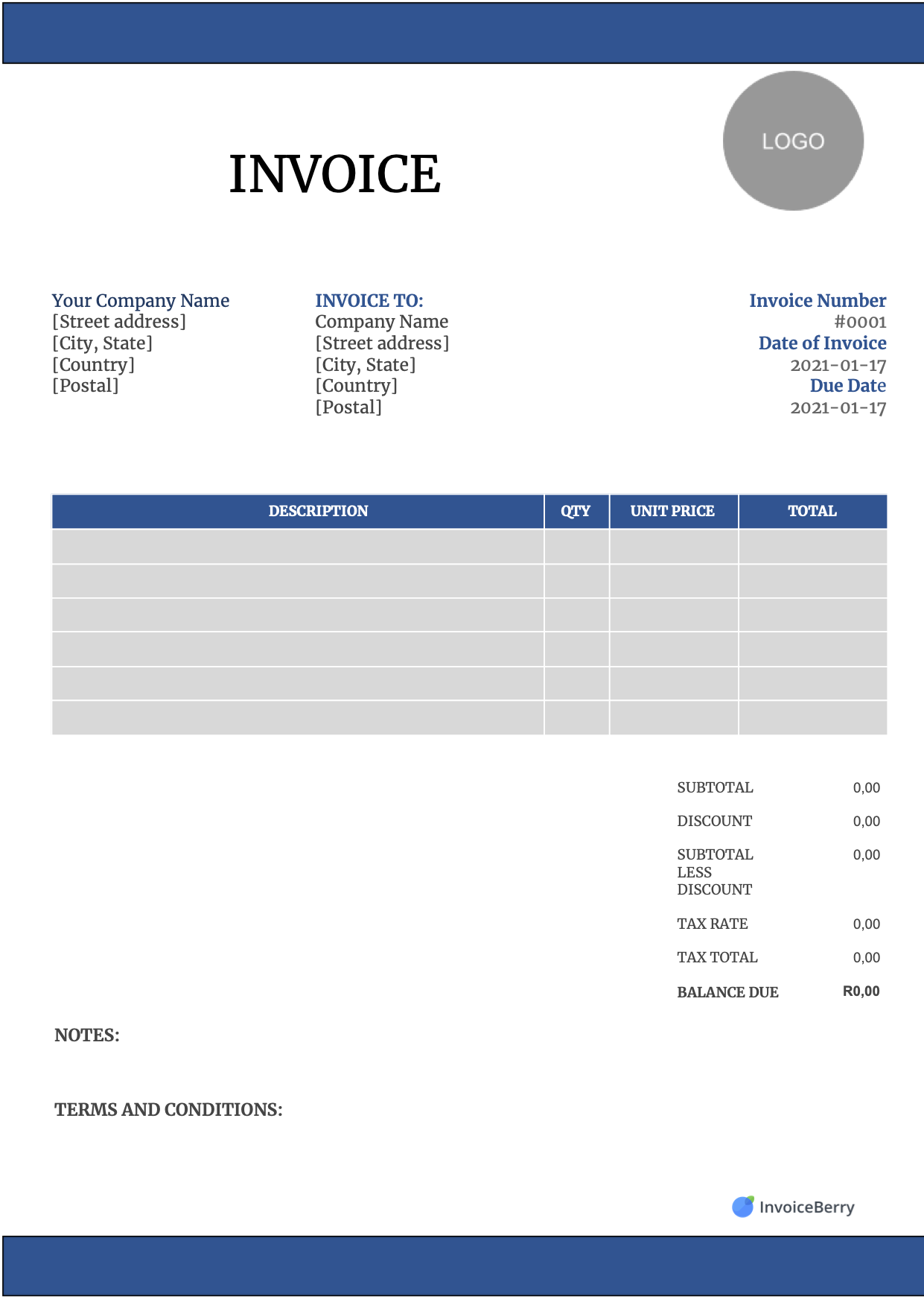
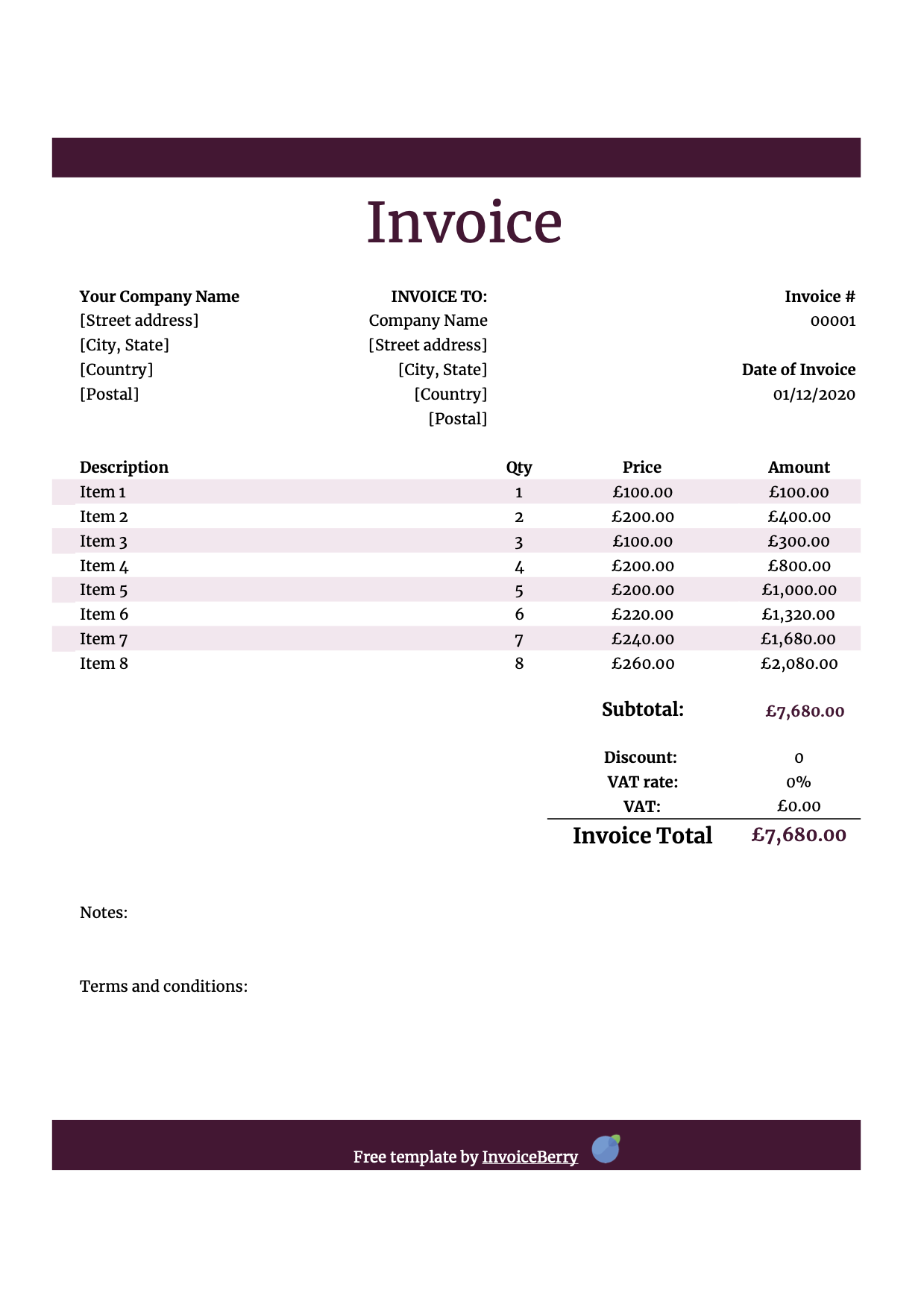
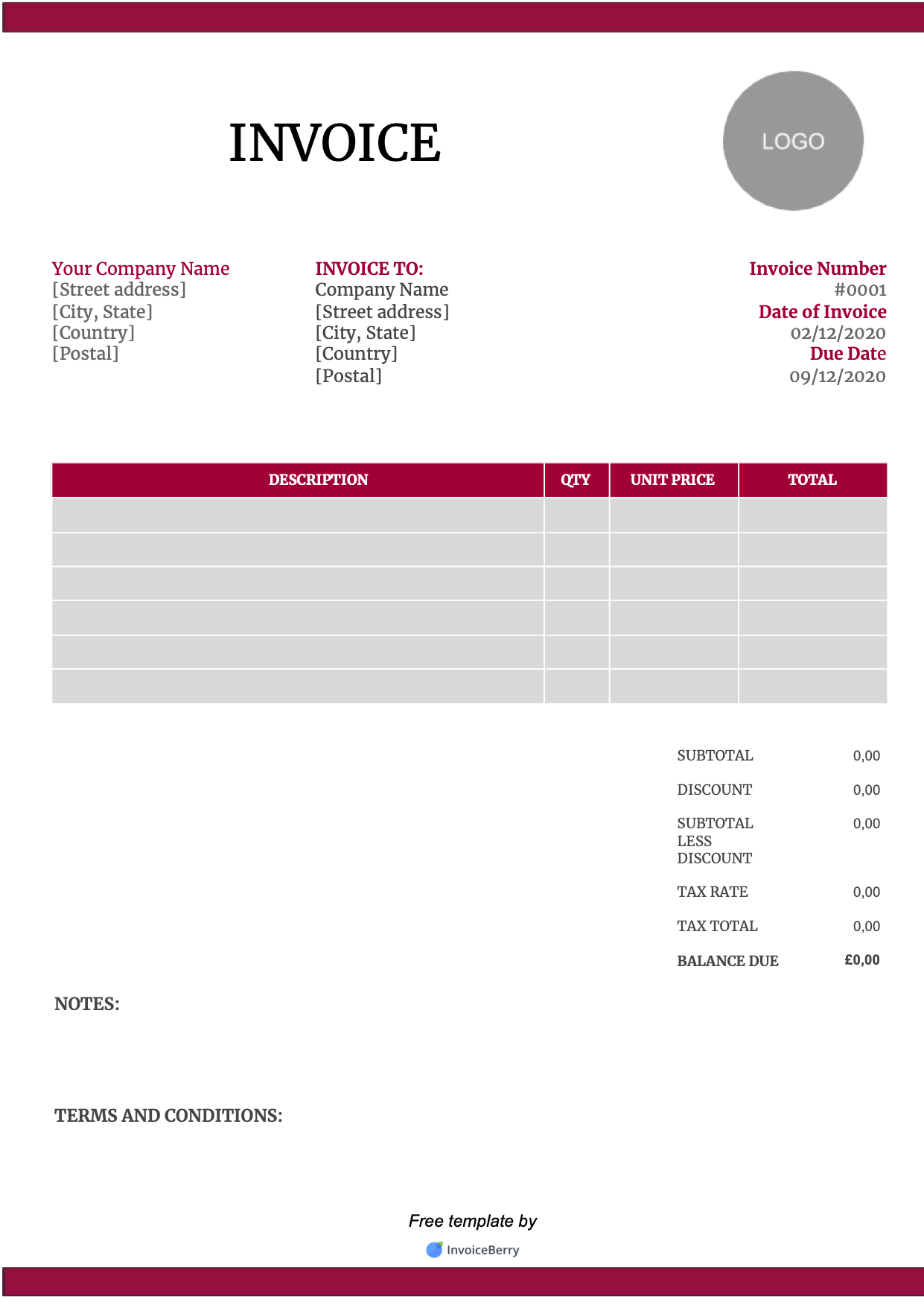
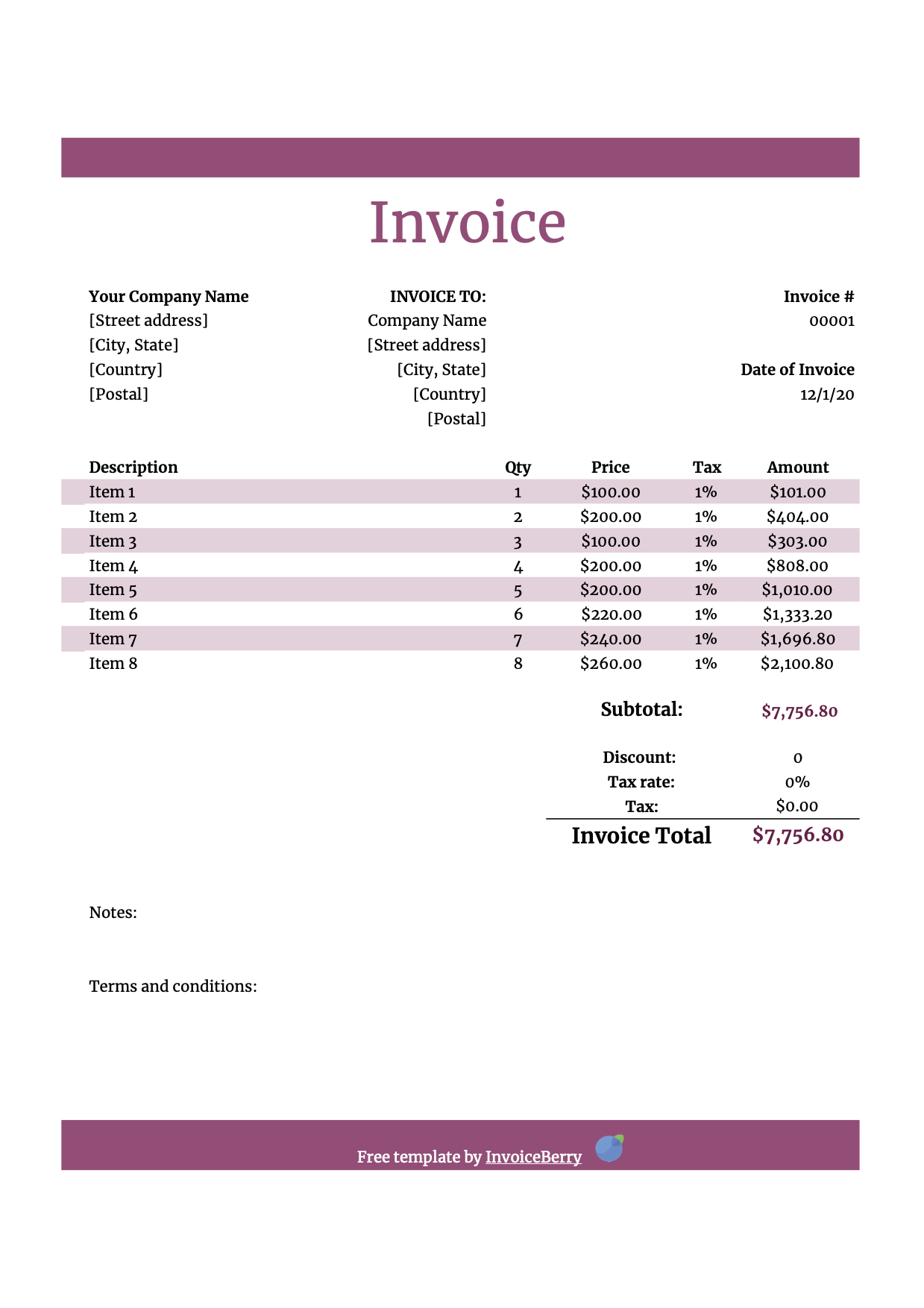
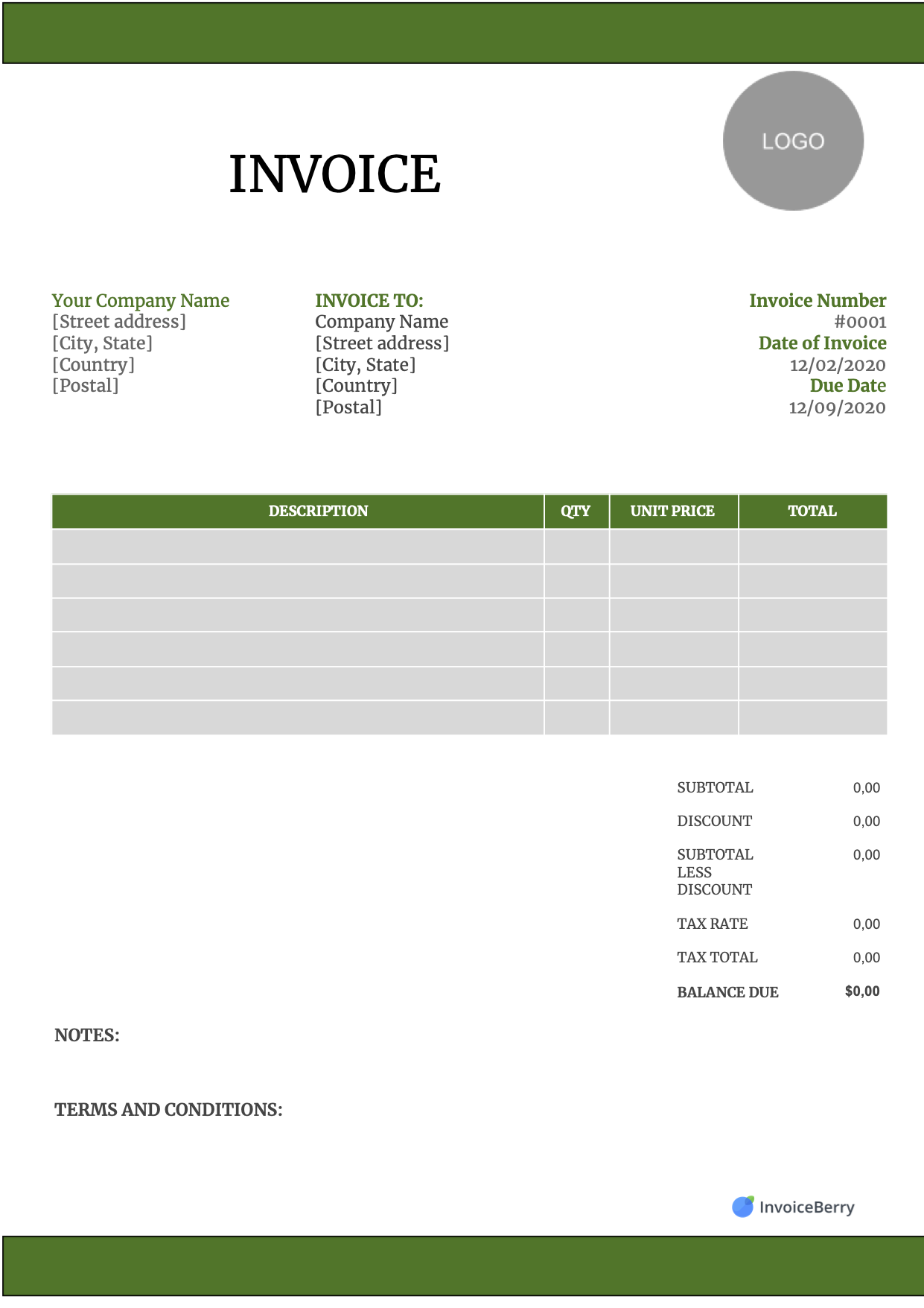
If you already have a sample invoice in another format, like a Word document or an Excel spreadsheet, you can upload this to your Google Drive so that you don't have to repeat most of your work.
However, make sure you double check the converted file to see if it converted your document correctly.
Word documents converted to Google Docs might have some formatting issues, as well as Excel spreadsheets turned into Google Sheet documents.
Of course, you can also create your sample invoice directly using Google Docs or Google Sheets by starting with a blank document or spreadsheet.
2. Make a copy when you need a new invoice
From this sample invoice, you can easily make a copy of this file on Drive so that you can customize it with your client's details.
Once your sample invoice is opened, choose Make a Copy from the File menu on Google Drive.r the location of this new invoice.
You will be able to type in a new name for the file as well as a different folder in your Google Drive for the location of this new invoice.
Once you've done that, you can edit the new file directly and add in your client's details. This way, you keep your original template intact and ready for the next time you need to issue an invoice.
3. Share the invoice with your client
Once your new invoice is ready, you can download a PDF version of your new invoice easily using Google Drive as well.
From the File menu, select Download and click on PDF Document (.pdf). Your new invoice in PDF format will be downloaded to your computer immediately.
After getting your new PDF invoice, you can print or share this to your client via any of your preferred methods, or you can also upload this PDF back into Google Drive and share that link to your client directly, saving you both a bit of hard drive space!
Signup now